41
submitted 2 years ago* (last edited 2 years ago) by StopSpazzing@lemmy.world to c/3dprinting@lemmy.world

I am finally reaching out as I am at my wits end and need experienced people to help me resolve my printing issue.

I have a Voxelabs Aquila (Ender 3 v2) formerly running marlin with small but manageable annoyances like overhang and manual bed leveling and thus began my journey after a year of using Aquila to start modding/upgrading the thing.

First thing i did was upgrade the fans and shroud, this improved prints slightly but was still not satisfied.

Moved to Klipper and added BLTouch and this is where all my problems started. After hours of following guides and troubleshooting of setting them both up, i still get very little bed adhesion and layers are not smooth together (gaps) with the same 3d slicing software i have been using before the switch (yes changed it to Klipper firmware in slicer)

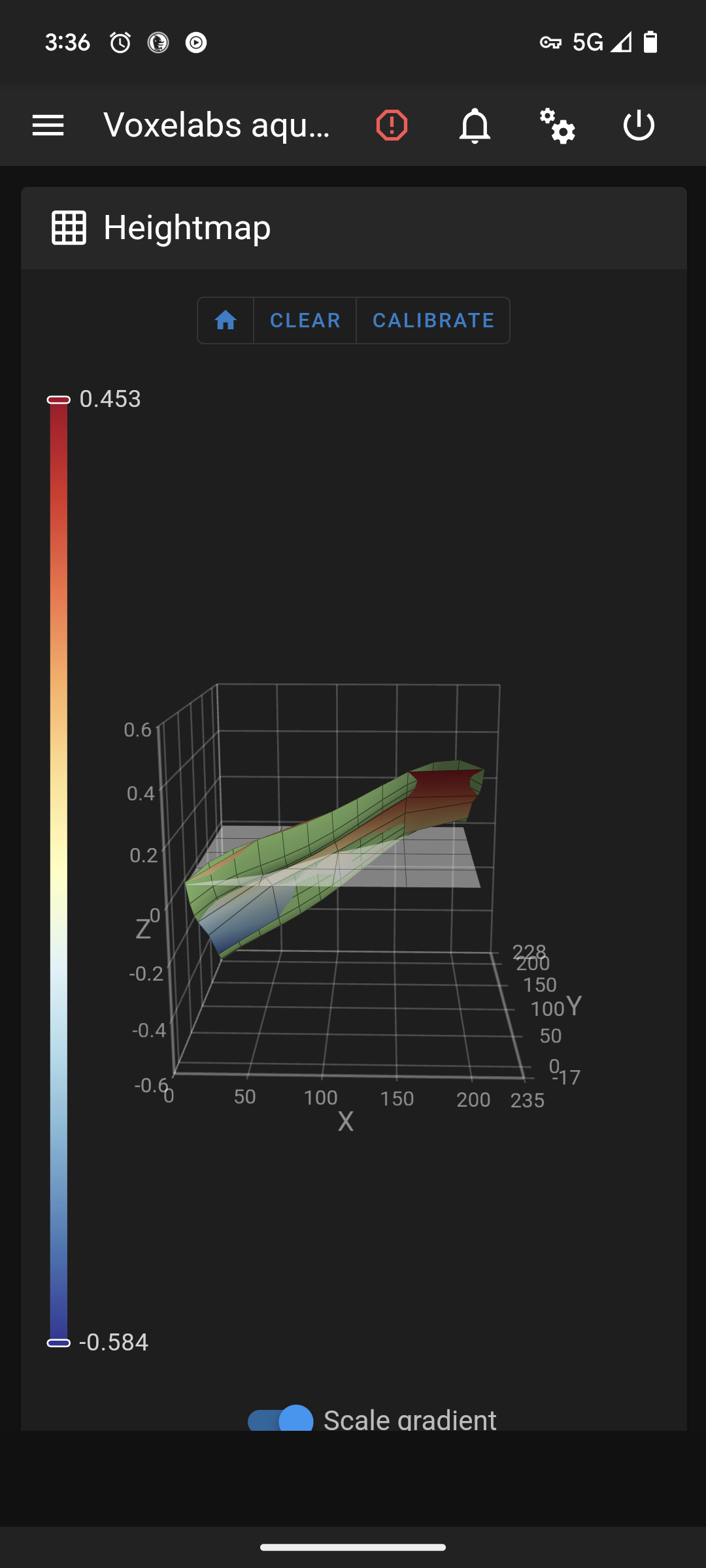
As you can see in the picture this is after a manual bed level. Where do i go from here?

Edit 2: fully cleaned nozzle, hotend, and bed without any other changes with same results.

Edit 1: forgot to add my printer.cfg

[include mainsail.cfg]

[stepper_x]
step_pin: PC2
dir_pin: PB9
enable_pin: !PC3
microsteps: 16
rotation_distance: 40
endstop_pin: ^PA5
position_endstop: 3
position_max: 235
homing_speed: 50

[stepper_y]
step_pin: PB8
dir_pin: PB7
enable_pin: !PC3
microsteps: 16
rotation_distance: 40
endstop_pin: ^PA6
position_endstop: -17
position_max: 228
position_min: -17
homing_speed: 50

[stepper_z]
step_pin: PB6
dir_pin: !PB5
enable_pin: !PC3
microsteps: 16
rotation_distance: 8
endstop_pin: probe:z_virtual_endstop
#position_endstop: 0.0
position_max: 250
position_min: -6

[extruder]
max_extrude_only_distance: 100.0
step_pin: PB4
dir_pin: PB3
enable_pin: !PC3
microsteps: 16
rotation_distance: 34.406
nozzle_diameter: 0.400
filament_diameter: 1.750
heater_pin: PA1
sensor_type: EPCOS 100K B57560G104F
sensor_pin: PC5
#control: pid
# tuned for stock hardware with 200 degree Celsius target
#pid_Kp: 21.527
#pid_Ki: 1.063
#pid_Kd: 108.982
min_temp: 0
max_temp: 250

[bltouch]
# Can't move this configuration to include because of z-offset adjustment
sensor_pin: ^PB1
control_pin: PB0
x_offset: -28
y_offset: -15
#z_offset = 0
samples: 2
speed: 2
#pin_move_time: 0.500
#probe_with_touch_mode: False
#pin_up_reports_not_triggered: True
#pin_up_touch_mode_reports_triggered: True
#stow_on_each_sample: False

[safe_z_home]
home_xy_position: 125,125 #this should be the center of your bed
speed: 50 
z_hop: 10
z_hop_speed: 5

[bed_mesh]
speed: 80
horizontal_move_z: 5
mesh_min: 3, 33       #!!min and max co-ords are based on the probes location not the nozzle!!
mesh_max: 207, 213  #needs to be calibrated for your individual printer
probe_count: 5,5 #this is the number of probing points on X then Y axis
mesh_pps: 2,2
fade_start: 1
fade_end: 10
fade_target: 0

[bed_screws]
screw1: 25, 25
screw2: 195, 25
screw3: 195, 195
screw4: 25, 195

[heater_bed]
heater_pin: PA2
sensor_type: EPCOS 100K B57560G104F
sensor_pin: PC4
#control: pid
# tuned for stock hardware with 50 degree Celsius target
#pid_Kp: 54.027
#pid_Ki: 0.770
#pid_Kd: 948.182
min_temp: 0
max_temp: 130

[fan]
pin: PA0

[mcu]
serial: /dev/serial/by-id/usb-1a86_USB_Serial-if00-port0
restart_method: command

[printer]
kinematics: cartesian
max_velocity: 300
max_accel: 3000
max_z_velocity: 5
max_z_accel: 100

#*# <---------------------- SAVE_CONFIG ---------------------->
#*# DO NOT EDIT THIS BLOCK OR BELOW. The contents are auto-generated.
#*#
#*# [extruder]
#*# control = pid
#*# pid_kp = 31.251
#*# pid_ki = 2.510
#*# pid_kd = 97.268
#*#
#*# [heater_bed]
#*# control = pid
#*# pid_kp = 69.577
#*# pid_ki = 1.022
#*# pid_kd = 1184.541
#*#
#*# [bltouch]
#*# z_offset = 3.609
top 22 comments
sorted by: hot top new old
[-] jrgd@lemm.ee 5 points 2 years ago* (last edited 2 years ago)

Before going any further to adjust your Z offset and other factors to tune for better bed adhesion, you should probably adjust your bed to actually be level as well as ensure (seeing that you only have one z lead screw?) that the X axis frame isn't sagging on the side not containing your Z lead screw. Once you've got those factors sorted out, you should check your probe repeatability and then set your Z offset accordingly.

Bed adhesion even with proper, clean first layers can be a pain depending on the bed surface, material being printed, how clean the bed is of oils and other contaminants, how hot the material is being extruded, and how hot the bed is among other factors. While using a bed mesh will greatly help to account for off-zero unevenness in your bed surface, you really shouldn't use it to compensate for uneven bed leveling (especially when it looks like you are nearing more than 0.5 mm in unevenness).

To diagnose other print issues, it will be helpful to see a picture showcasing the problems described in a failed print.


As a side note, it is somewhat difficult to read your Klipper config file without using view source as it is being markdown formatted. You can negate it by using three graves on the lines above and below it so that it is wrapped in a 'code block' and isn't formatted.

```
Some code
  eeeee
  fffff
```

Turns into

Some code
  eeeee
  fffff
[-] StopSpazzing@lemmy.world 1 points 2 years ago

Thanks, i have updated my post with proper markdown sorry about that. I will level it again and increase the z offset to flatten the print for better adhesion (while i have done this before wouldnt hurt to do it again)

[-] user1234@lemmynsfw.com 3 points 2 years ago

One thing that was driving me crazy was that even when I manually leveled, I wasn't getting uniform leveling as I expected. Turns out that klipper doesn't automatically load the measured grid automatically. So basically after I ran the bed leveling, it requires a restart to save, but doesn't load on start. Once I realized that, I made a habit of just loading the mesh manually each time it restarted. Started getting expected leveling results after that.

[-] StopSpazzing@lemmy.world 2 points 2 years ago

I took too long to learn this too. Even with it leveled via bltouch, i still have adhesive issues.

I suggest looking into macros which will allow you to set your mesh profile in gcode which will resolve any manually selecting of mesh. This is my next step after i fix this major issue I'm having.

[-] ShepherdPie@midwest.social 1 points 2 years ago

Are you calling the mesh something other than "default?" Mine will load the previous mesh automatically. I believe you have to change the config to use your preferred name as the default mesh instead of using "default" in the config.

[-] StopSpazzing@lemmy.world 1 points 2 years ago

I had the same issue too. Idk what its related to but learned this hard way too. Im moving to macros in gcode after i get the main issue fixed and doing so will let me select the mesh name.

[-] user1234@lemmynsfw.com 1 points 2 years ago

As far as adhesion goes, what print surface are you using? I personally have found that a glass bed with aqua net hairspray works better than any other combo that I've tried. I almost never have any issues with adhesion using PLA or PETG.

[-] StopSpazzing@lemmy.world 1 points 2 years ago

Glass bed that came with printer. Only printing PLA.

[-] user1234@lemmynsfw.com 1 points 2 years ago

Are you using anything on the bed?

[-] StopSpazzing@lemmy.world 1 points 2 years ago

I am not, never have. Always clean it with Isopropyl 70% or greater after about 5 prints or if it sits unused for a lengthy amount of time

[-] user1234@lemmynsfw.com 1 points 2 years ago

I seldom had any good adhesion on clean glass. But cheap hairspray works wonders for me. Gives it something to stick to, but also functions as a release agent. Especially helpful if you ever use PETG, because it's been known to actually bond to the glass.

[-] StopSpazzing@lemmy.world 1 points 2 years ago

I have the opposite, it will stick well to cleaned glass and after following first post suggestions and flipping the glass surface to the smooth unscratched side, it sticks without anything else.

[-] user1234@lemmynsfw.com 1 points 2 years ago

I've always used the name default. I'll look into changing it in the config.

[-] ShepherdPie@midwest.social 1 points 2 years ago

Not sure what the issue is here then as this is how I'm running mine as well. I didn't have to make any changes to the config.

[-] user1234@lemmynsfw.com 1 points 2 years ago

What version of klipper are you using? I know it used to auto load the default profile, but they changed it about a year ago to require you to manually set it, either with a macro or in gcode itself.

[-] ShepherdPie@midwest.social 1 points 2 years ago

Not sure on the version. It should be updated to the latest or nearly the latest version.

[-] SzethFriendOfNimi@lemmy.world 2 points 2 years ago

I’ve got a Frankender myself and have been using Klipper for a few years.

I’ve been where you are and I understand the frustration.

I’m assuming your range is high enough to warrant it. The scale of the height map can be deceiving. For example my Frankender is relatively well tuned now and its range (with the not so flat stock bed) when the bed is heated is about 0.09. That’s quite a bit less than a layer height and so it’s not an issue. Could be you’re in the same boat.

So let’s take a step back and look at it fresh.

  1. Physical
  2. Kinematics
  3. Adjustments and corrections.

1a. Let’s make sure your gantry is square.

I’ll list them here but you can find slot of this in this video

https://youtu.be/MP0AIyIwNTA

  • loosen and then gently tighten the screws. Really just “snug” is good. Over tightening cannot only strip the aluminum threads but also “twist” the extrusion subtly (this one took me a week to find)

  • use a square (even a carpenters square if it’s all you have) and make sure that the Z extrusions are square with the X direction extrusions they mount to. If they’re not loosen the appropriate screws and, if needed, use small flat folds of aluminum foil to get them right)

  • Make sure your Z extrusions are parallel and not rotated compared to each other. Use something rigid and square (such as the X gantry extrusion if it’s undone) to align their faces.

And, while you’re at it, if the X extrusion is off anyway go ahead and find a flat reference surface (granite countertop, glass top range… carefully on this one) and make sure it’s not twisted (see more here https://youtu.be/qju5RECjVUM)

  • Make sure your actual Z gantry isn’t diverging/leaning inwards as it gains height (if you use a Squarish rule and put it on your X gantry as you slowly move it up and check that the distance is relatively the same. Won’t be perfect hit shouldn’t be obviously wrong. Again loosen the screws and then tighten them with a little more “snug” on the inner or outer set of screws to align them. You’ll probably have to loosen the top mount screws to give them room to move and then gently snug them.

  • Make sure the X gantry is parallel with the top frame. Bring it up and then make sure it’s consistently the same distance on the left and right. If not then adjust the screws on the mounting brackets that ride on the Z extrusions and get it close. Then, again, gently tighten them just past snug. Too much here and you can introduce the twisting I mentioned above… that one cost me a week once and is the reason I know about skew_compensation. Of course once loosened the issue was fixed and thankfully wasn’t something with the frame.

  • Make sure the Y gantry is also straight (to lessen XY skew) as much as possible by checking that the distance between it and the two size extrusions the Z’s mount to are relatively parallel. Loosen the 4 screws beneath the printer, straighten it and tighten.. again just past snug.

1b. That covers the frame. Now for the physical motion.

  • Adjust the wheel tension. If the wheel adjustment nuts are too tight you’ll get binding, flat parts, etc causing issues.

Can see an overview of this here

https://youtu.be/Y-FeyUn3Rq4

You’ll loosen them on the Y gantry first. Then tighten them so that, while you hold the bed with one hand, you can barely turn them with your other. If they turn easily tighten. If you can’t turn them without the bed moving… then loosen. They should barely turn with some resistance. When your done the bed should move freely but not “rock” or “pivot”

  • Now do the same for the X gantry. And you’re looking for the same results and likewise your X gantry should move freely but not “rock”.

  • Now do your Z wheels. Same as above.

  • Now for the belts. Too tight and they’ll wear out or break and strain your steppers. Too loose and you won’t get consistent movement.

There’s apps that you can use to pluck them and get them just right but I find the following works pretty well.

First the Y. Move the bed all the way back to the end stop and then “pluck” the belt on top. You want it to feel like it’s firm. Not a high pitch tone or a lot of resistant. More like your dangling an apple at the other end and you can feel the resistance. If it’s really loose or a low “thud” then tighten them.

Now do the X, move the X carriage all the way to the left and on the other side, on the bottom, do the same feeling for the same result.

1c. The bed tramming. Tighten all the screws all the way so that the bed is pulled low. Then rotate them back 2 full turns (e.g. looking from the top of the bed you’re going to turn them all 2 hours counter clock wise)

This will be done cold, you don’t need to hear the bed or nozzle. The BLTouch will handle the difference with expansion and you’ll have to adjust Z offset later. Right now what we want is your X gantry and carriage to be as close to parallel with your bed as possible. The X carriage isn’t going to be perfectly parallel with the ground, etc. but as long as the bed “matches” any tilt then it doesn’t matter. That’s what we’re tramming it for.

Now home your printer so that the motors are all engaged and using the UI move the toolhead just over the back left screw (where the bed wire retention assembly is). This is the screw you have less room to work with so I find it easier to make it my reference point.

Now using a piece of paper, a feeler gauge, anything consistent baby step the nozzle down until you just barely feel resistance. Then move it consistently up something like 5mm. Then move it over the opposite screw (the front right one). Then move the head down by 1mm 5 times. Basically we just want to be careful not to crash the head. If it’s obviously more than 5mm above then you can just move by 5.

So to recap we’ve positioned it at the reference screw touching the bed. This screw we’re not turning. Just bringing the nozzle to it. Then move the nozzle Z up 5, moved it over to a new screw, and then Z down by 5.

Now adjust the screw under front right of the bed bringing it up to the nozzle while testing with the paper/feeler and just when you feel like there’s some grab to it stop. If there’s too much then just tighten the screw until it’s right.

Now move up Z by 5mm, then move to the upper right screw and, just as before, bring it down by 5mm and adjust the screw until it touches the nozzle.

And do the same for the lower left screw.

Now home everything again… as we adjusted the screws the bed was pivoting ever so slightly… so we’ll do it again to fine tune the points.

Move over to the upper left, bring the nozzle down until you get the right resistance on the paper/feeler. Move up by 5, move to the front right screw, down by 5 and tweak the screws to match. Then do the same for the back right and front left screws. You should just about be trammed and you’ll find, as your doing this, that you don’t have to really adjust the screws much as it should already be about right as your “dialing it in”

So now you have a pretty good foundation for the next steps. Your physical printer is relatively square, things aren’t so tight that they’re twisting everything by a degree, but are tight enough to stay relatively where they should, The X Gantry is relatively parallel to its frame, and bed is relatively in line with the X gantry. Your belts are tight enough to reliably move the printer components without causing any issues. And your wheels are holding onto the extrusions so that your bed and X carriage aren’t twisting throwing off distances and skewing probes. But aren’t so tight that they deformed causing bumps and shifts as they move

Continued next reply

[-] Anticorp@lemmy.world 2 points 2 years ago* (last edited 2 years ago)

Your bed is probably warped. It'll be level at the points you measured, but way off elsewhere. Get a straightedge or a ruler and check it. Shim the low spots with aluminum foil folded over on itself. Even glass beds have some bend in them and will not be level when you clip them to the edges.

Don't use the paper method, it's not accurate. Buy a feeler gauge off Amazon for $10.

Increase the number of spots to measure for your bed mesh.

Reduce the gap between the nozzle and the bed for PLA. I usually use anywhere between -0.4mm all the way up to -1.5mm z offset. Increase the gap for PETG

[-] StopSpazzing@lemmy.world 2 points 2 years ago

Thanks, i think going to buy the feeler gauge for better precision.

[-] AidenVennis@lemmy.world 1 points 2 years ago

Seems like your bed is sloped. Have you used the corner leveling tool as described here? https://www.klipper3d.org/Manual_Level.html#adjusting-bed-leveling-screws

[-] StopSpazzing@lemmy.world 1 points 2 years ago

Yes, many times. Going to try what others have suggested and will update. Thanks for your suggestion :)

[-] tagginator@utter.online 0 points 2 years ago

New Lemmy Post: Klipper from marlin, tons of issues (https://lemmy.world/post/12409369)
Tagging: #3dprinting

(Replying in the OP of this thread (NOT THIS BOT!) will appear as a comment in the lemmy discussion.)

I am a FOSS bot. Check my README: https://github.com/db0/lemmy-tagginator/blob/main/README.md

this post was submitted on 25 Feb 2024
41 points (97.7% liked)

3DPrinting

24089 readers
48 users here now

3DPrinting is a place where makers of all skill levels and walks of life can learn about and discuss 3D printing and development of 3D printed parts and devices.

The r/functionalprint community is now located at: or !functionalprint@fedia.io

There are CAD communities available at: !cad@lemmy.world or !freecad@lemmy.ml

Rules

If you need an easy way to host pictures, https://catbox.moe/ may be an option. Be ethical about what you post and donate if you are able or use this a lot. It is just an individual hosting content, not a company. The image embedding syntax for Lemmy is ![]()

Moderation policy: Light, mostly invisible

founded 3 years ago
MODERATORS